

Prayer requests
A Prayer Requests collection keeps everything you're praying about in one place: who it's for, who asked, what's happened since, the verses you're standing on, and when it was answered. These screenshots are from myStuf Online on a phone-sized screen; the myStuf app works the same way.
You'll need: myStuf (the app, or myStuf Online at mystuf.app) with a Prayer Requests collection. Create one like any other collection (see Your first collection). Linking people works best if you also have a People collection (see tutorial 4).
-
See what you're praying for
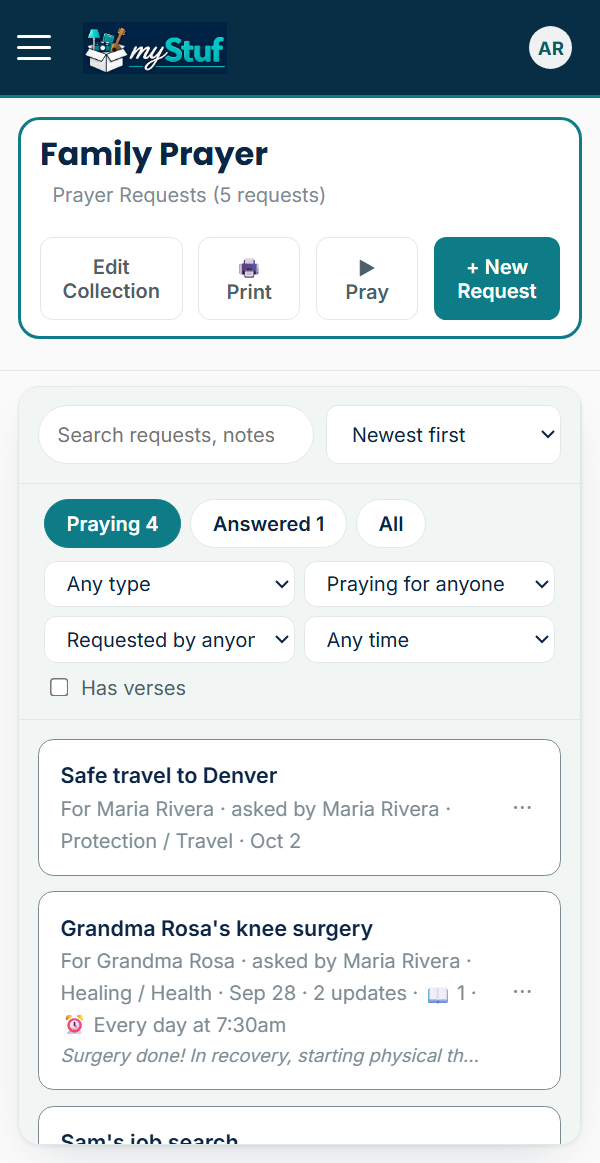
The list opens on Praying: every request still open, newest first. Answered and All sit beside it, each with a count.
Sort by date, the person it's for, who asked, type or status, and filter by type, person, a date range, or only requests with verses. Search looks through the details, notes, follow-ups and verse text too.
-
Add a request
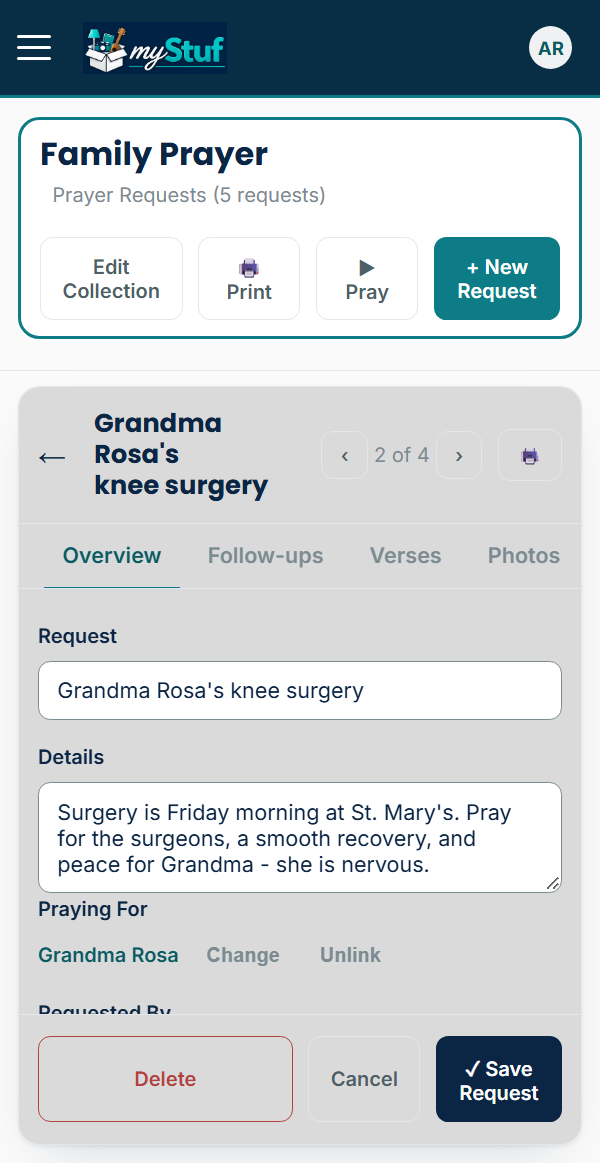
Tap + New Request. Give it a short title and the details, then fill in Praying For and Requested By. Type a name, or tap Link to pick someone from People. A linked request also shows up on that person's page.
The date starts as today and the status as Praying. Pick a Type (Healing, Family, Guidance, Travel and more) to filter by later.
-
Add follow-ups as things change
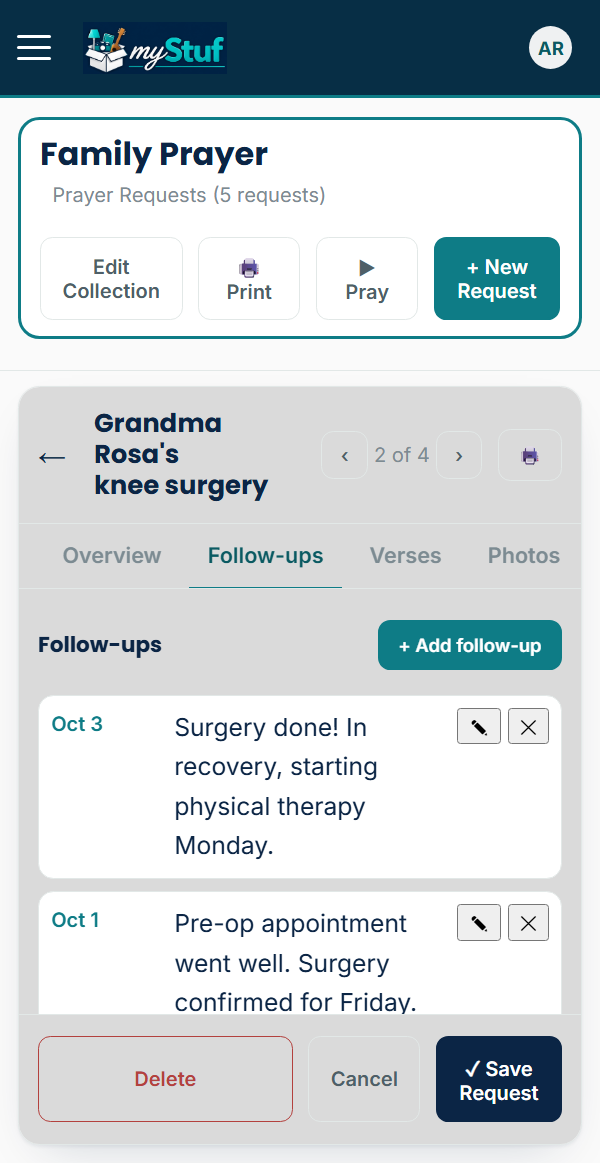
On the Follow-ups tab, tap + Add follow-up to note what's happened, dated. The newest is on top, and the latest one shows on the list under the request.
-
Add verses, and look them up
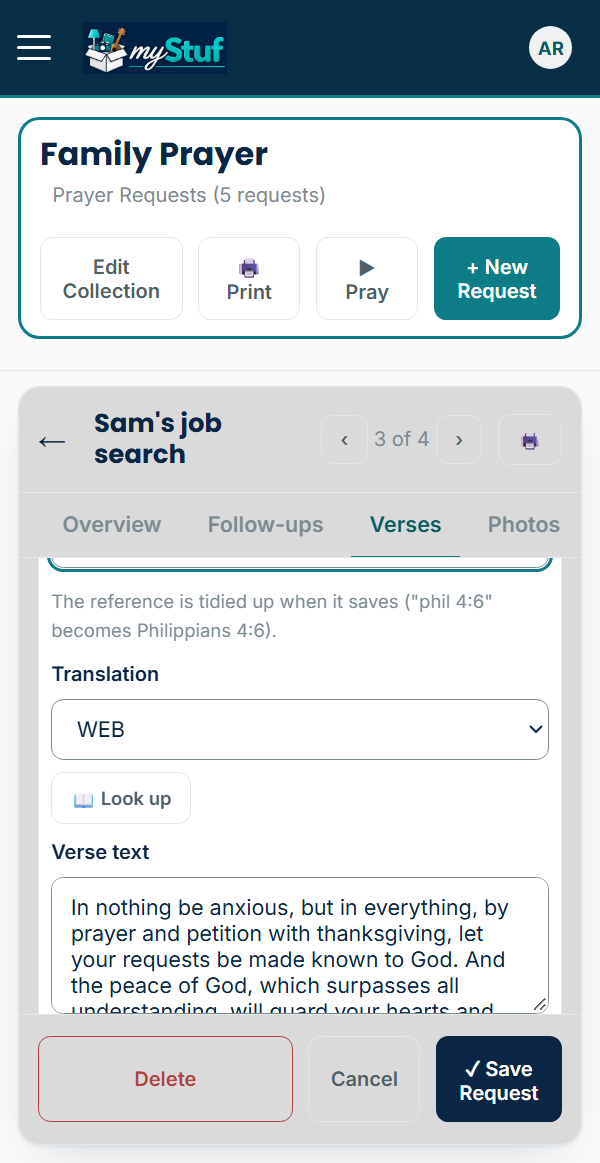
On the Verses tab, tap + Add verse and type a reference however it comes to mind. "phil 4:6-7" is tidied to Philippians 4:6-7.
With the WEB (World English Bible) or KJV translation picked, Look up fills in the text. For any other translation, paste the verse in yourself.
Want to learn one by heart? Tap the verse and choose Memorize in the app, or click 🧠 on myStuf Online. It's added to the Memory Verses in your Bible Reading Plans (see tutorial 10).
-
Get a reminder to pray
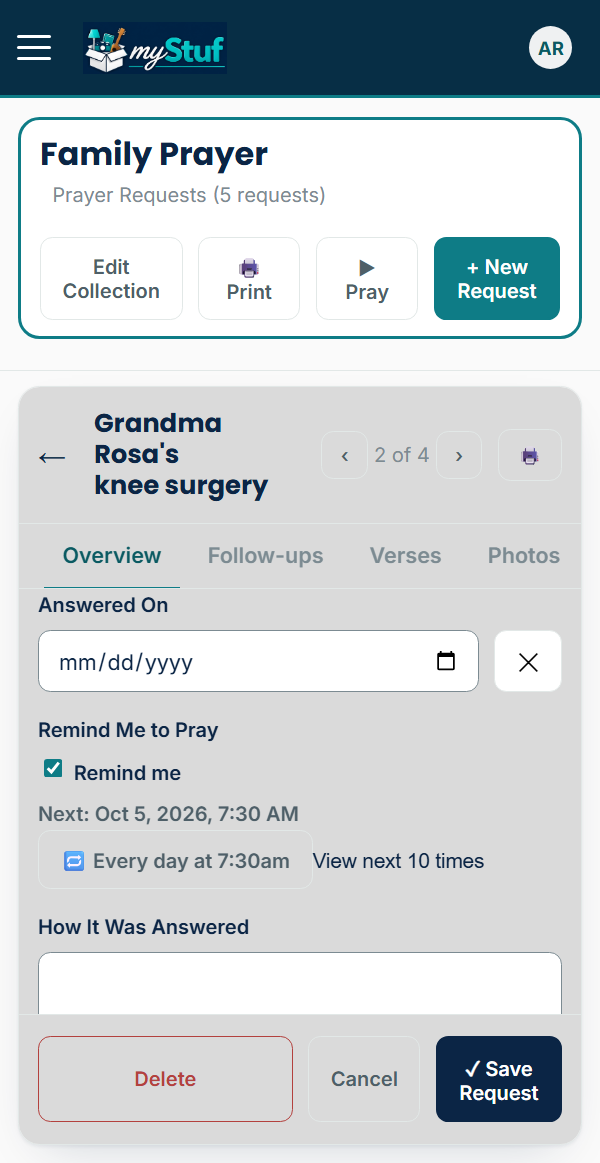
Turn on Remind Me to Pray, pick a time, and tap Repeat for every day, certain weekdays, or another schedule. Your phone gets a notification each time.
Once a request is answered, its reminders stop.
-
Pray through them, one card at a time
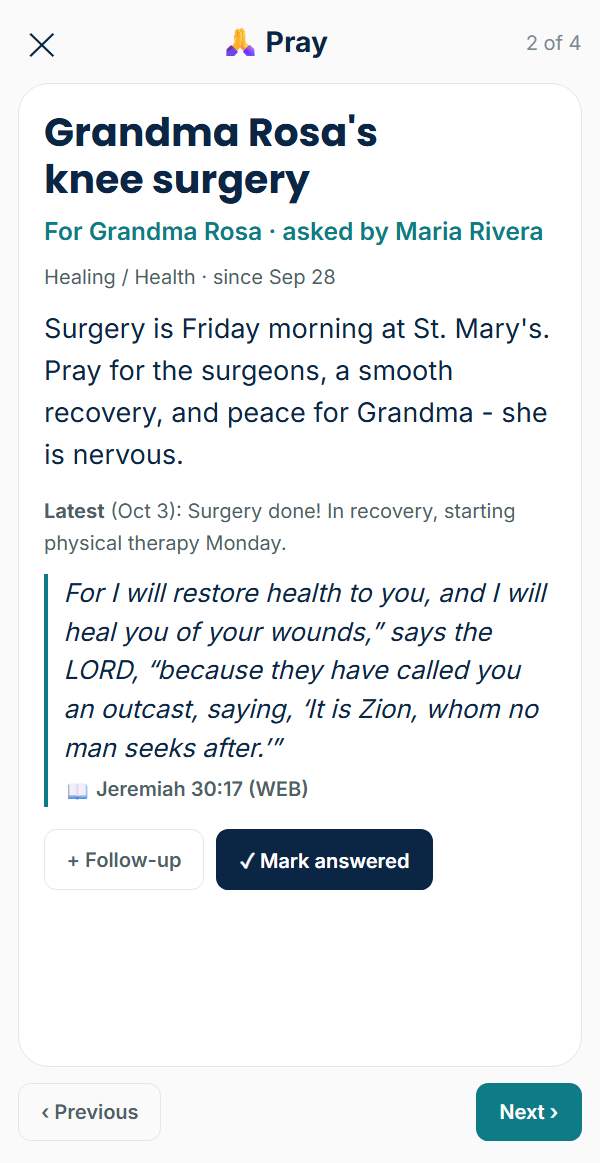
Tap ▶ Pray on the list. Each open request becomes a card: who it's for, the details, the latest follow-up and its verses. Swipe (or use Previous and Next) to move on.
Add a follow-up or mark it answered right from the card.
-
Mark it answered
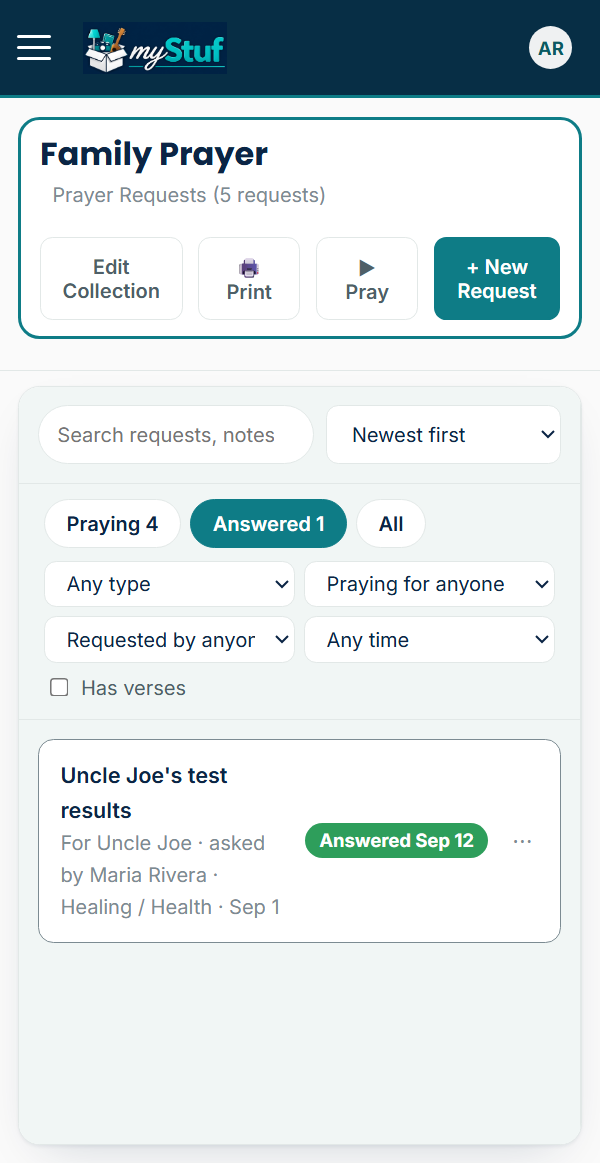
Set the Status to Answered, or tap ✓ Mark answered in a request's ⋯ menu. The date fills itself in and there's room to note how it was answered. It moves to the Answered tab with a green label, and the same label sits at the top of the request so you can see where it stands without scrolling.
The ⋯ menu also has Share, which sends a request as a text message, and Duplicate. Print lets you choose to include details, follow-ups, verses and notes.
That's it. Back to all tutorials, or see the myStuf in Action page for bigger ideas.