
Bible reading plans
A Bible Reading Plan turns "read the Bible this year" into one manageable reading a day. Pick your dates and what to read, and myStuf splits it up, keeps your place, and helps you catch up when life gets in the way. Its Memory Verses tab helps you learn verses by heart. These screenshots are from myStuf Online on a phone-sized screen; the myStuf app works the same way.
You'll need: myStuf (the app, or myStuf Online at mystuf.app) with a Bible Reading Plans collection. Create one like any other collection (see Your first collection).
-
Your plans at a glance
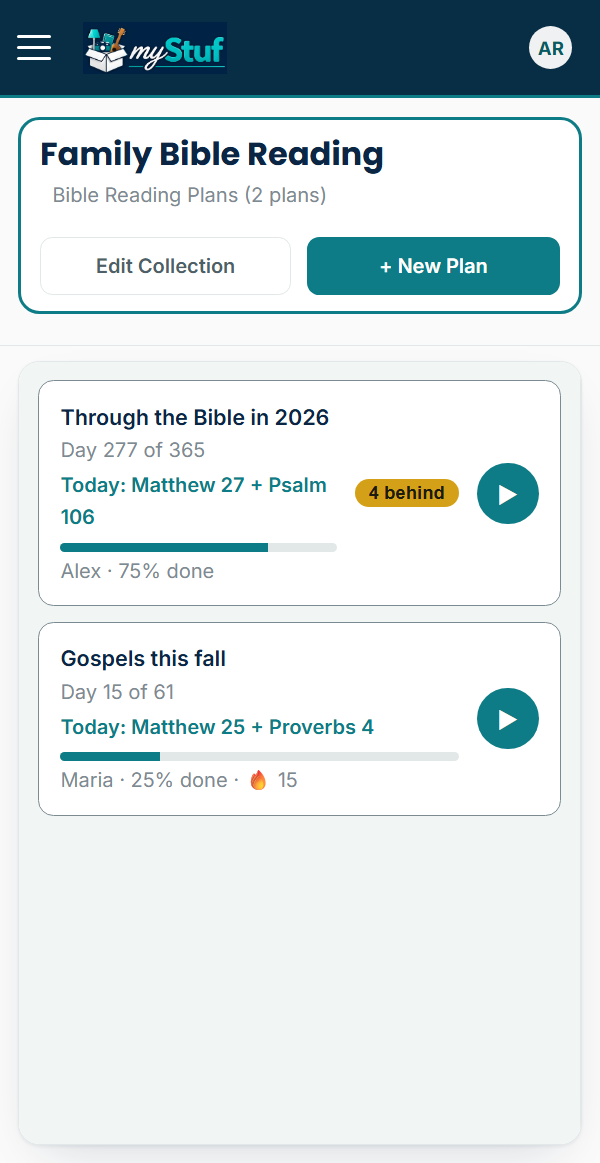
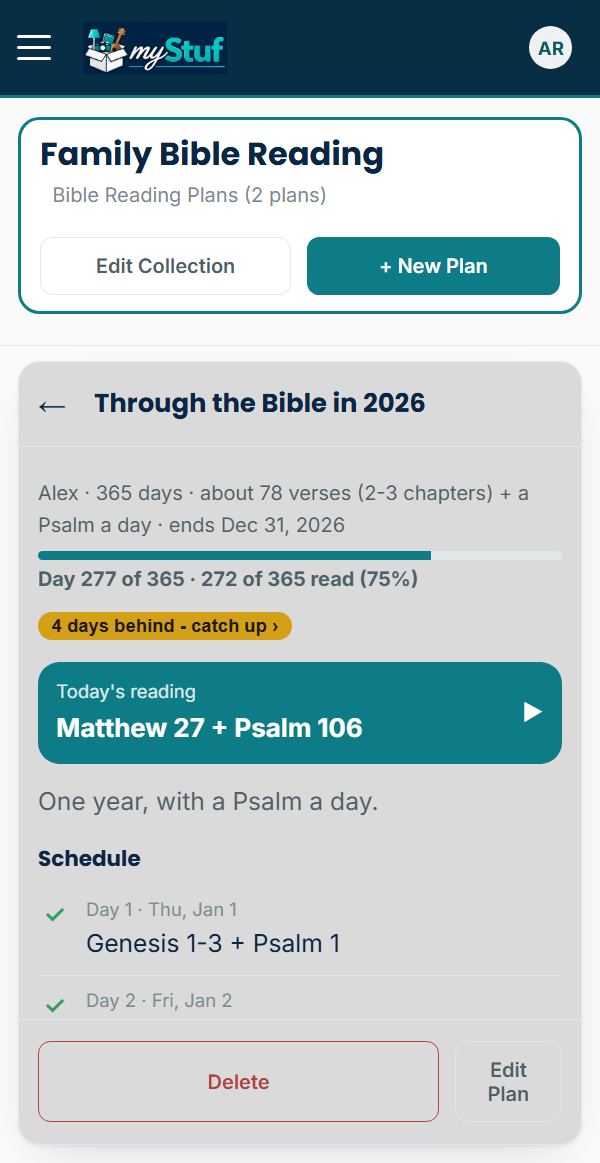
Each plan shows which day you're on, today's reading, a progress bar and your streak. If you've missed days, a behind label shows how many.
Tap ▶ to go straight to your next reading, the first day you haven't read yet. Share the collection to read along as a family: everyone checks off their own days, and each plan shows each person's progress.
-
Choose what to read
Tap + New Plan, give it a name, and pick the start and end dates, or use a quick choice: 30 days, 90 days, 6 months or 1 year.
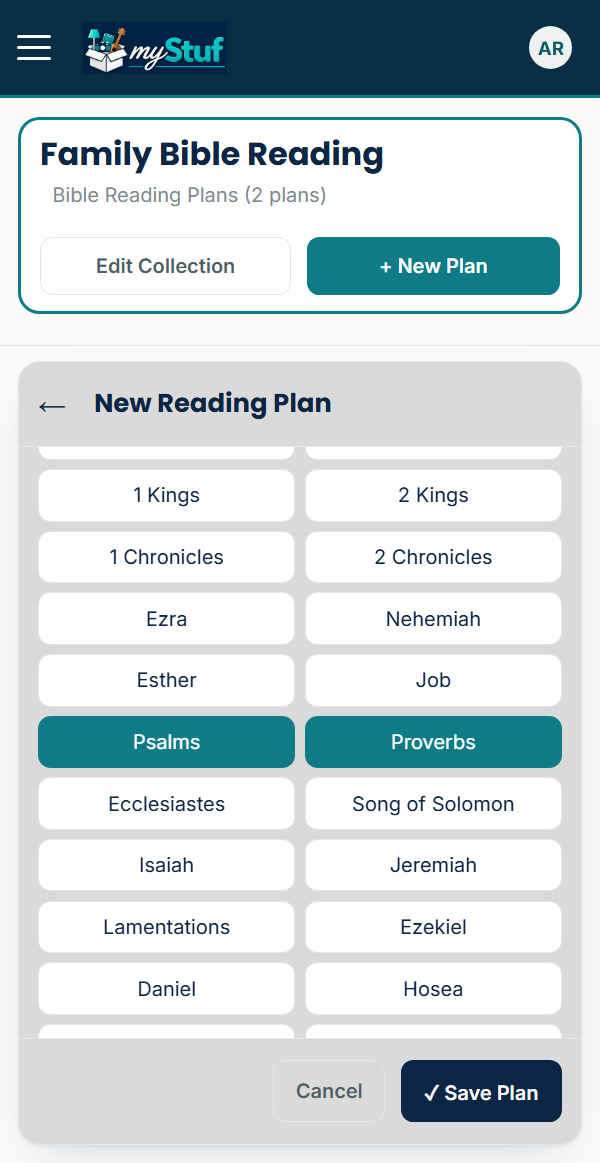
Under What to Read, pick the whole Bible, the Old or New Testament, or Chosen books. Tap books to choose them, use a shortcut like Gospels, Paul's letters or Wisdom, or tap Range… then the first and last book (Romans, then Colossians) to choose everything between. Or pick Chosen passages and type a list like Psalms 1-12, Isaiah 53, Colossians 1:9-20, 3:1-8. Each passage becomes one day's reading, in the order you typed them.
-
See what each day holds, and set a reminder
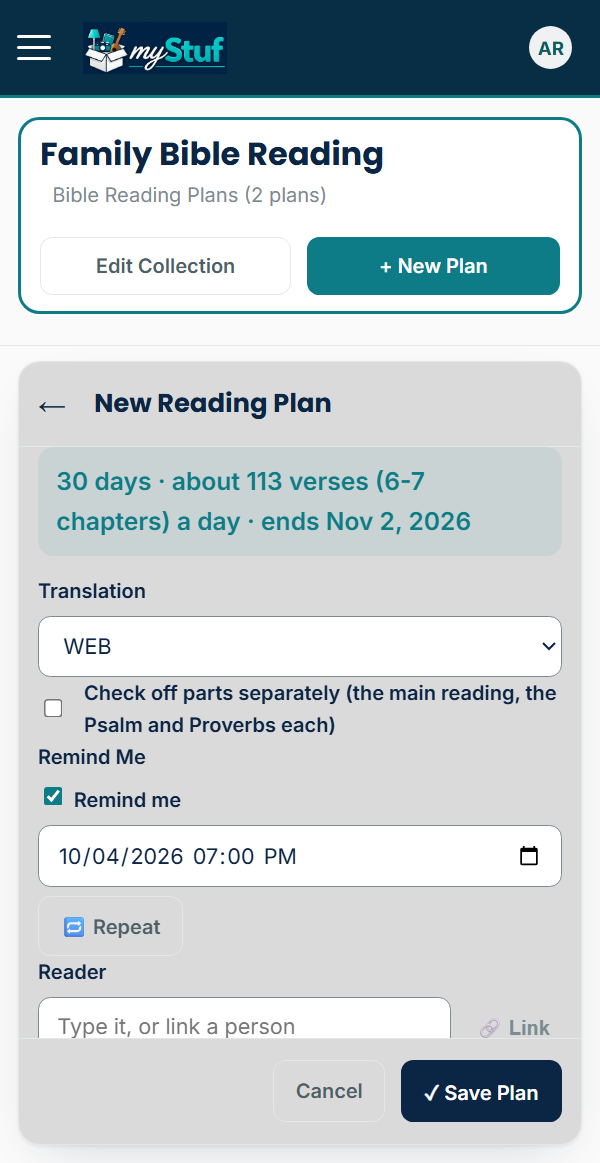
As you choose, a preview shows how much each day will be, like "30 days · about 113 verses (6-7 chapters) a day". Days are balanced by verses, not chapters, so they come out about even.
Add Each Day mixes a Psalm or a Proverbs passage into every reading. Turn on Remind Me and set it to repeat daily, and your phone tells you the day's reading. It skips days you've already read.
-
Your plan's page
Open a plan to see how far you've come, your next reading, and the whole schedule. Read days have a ✓, today has a ●, and missed days have a ○. Tap a day's mark to tick it read without opening it, or tap the day to open its card. The plan opens at your next reading.
-
Read it right on the card
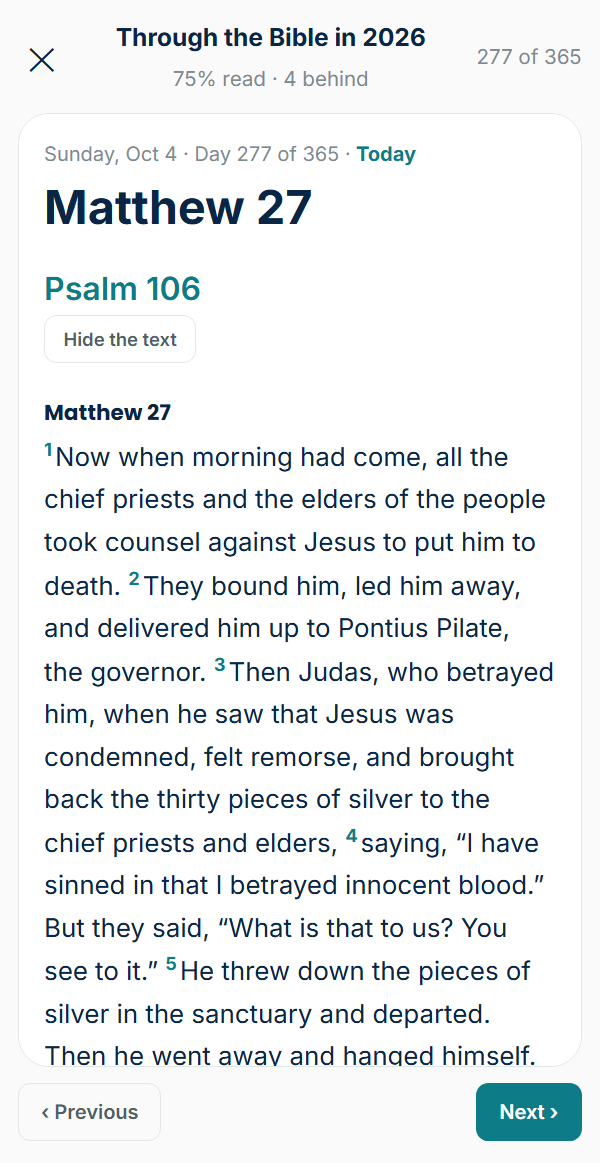
Each day is a card. Tap 📖 Read it here to read the passage with verse numbers, in the World English Bible or King James Version. Bible Gateway ↗ opens the whole day's reading on biblegateway.com in the plan's version, including ESV, NIV, NKJV, NLT, NASB and CSB.
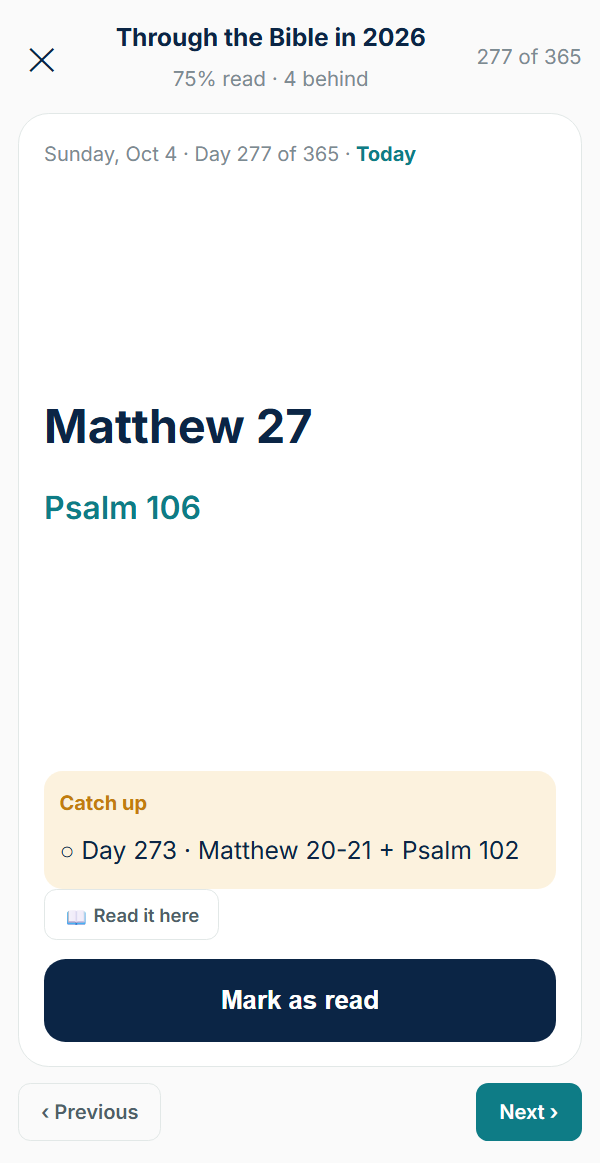
Tap Mark as read when you're done and the card moves on to the next day. Swipe back for days you missed, or forward to read ahead.
-
Catch up when you fall behind
Tap the behind label on the plan and choose how to catch up:
Read the missed days now opens the first one. Spread them over the next week adds a share of the missed days to each day's card, as shown here. Move the rest of the plan to start today shifts the remaining days forward and moves the end date out.
-
Learn verses by heart
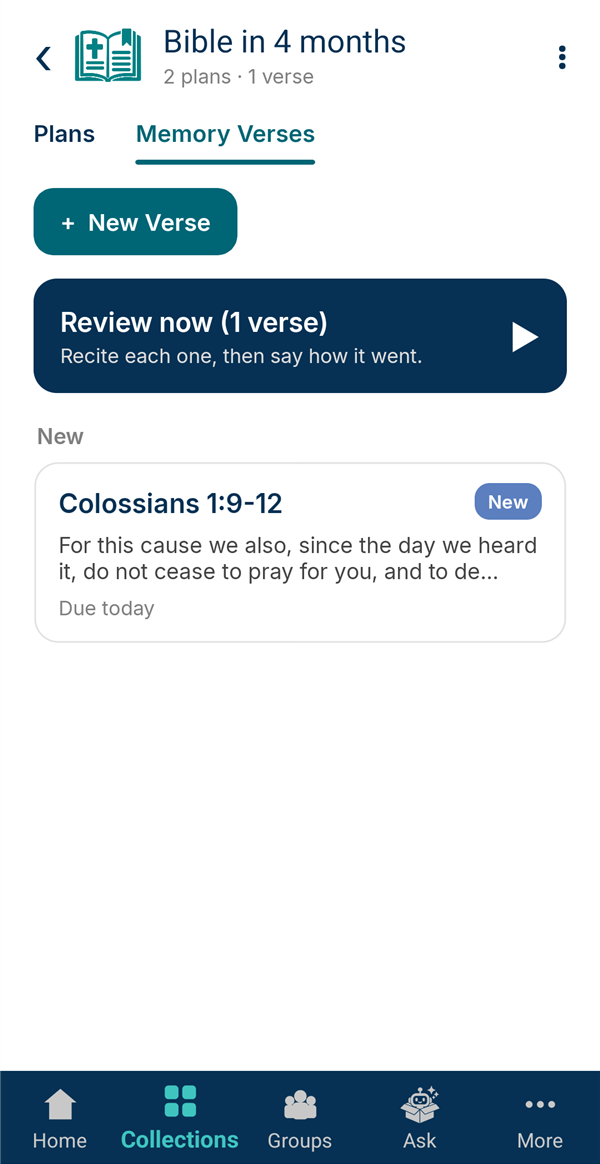
Switch to the Memory Verses tab and tap New Verse. Type the reference, then tap Look up for the World English Bible or King James Version, or paste the verse in from another translation. A day's card and a prayer request's verse also have a Memorize button.
Verses are grouped by where you are with them: due, new, learning and memorized. Review now takes you through everything that's due.
-
Practice until it sticks
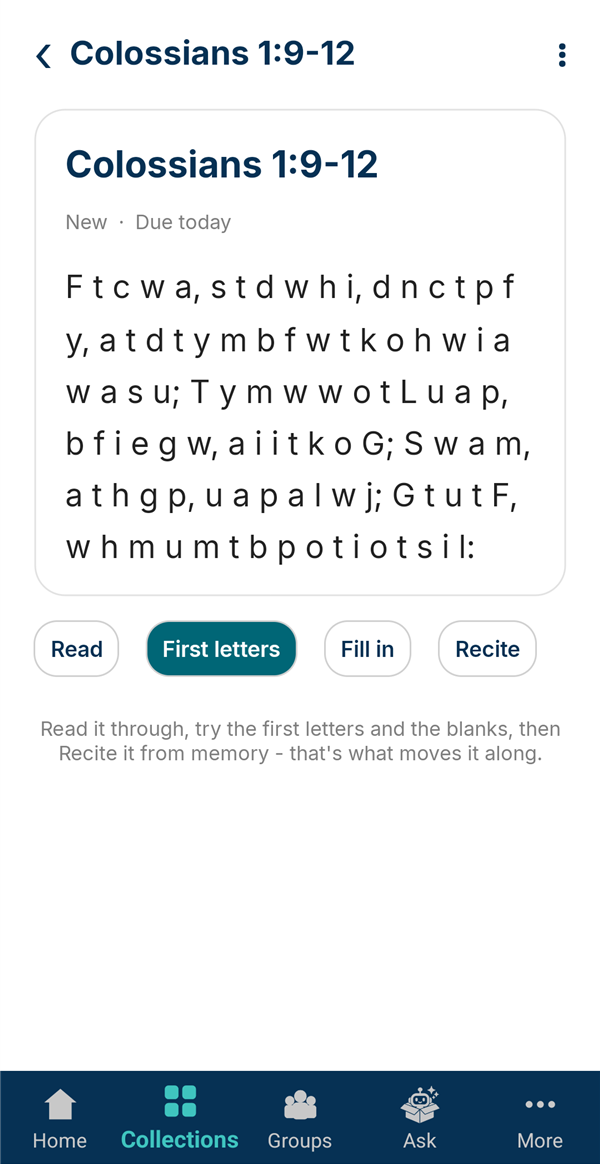
Open a verse to practice it: read it, try it with only the first letters, fill in the blanks, then Recite it from memory and say how it went: Got it, Close or Missed.
Verses you get right come back less and less often, and after two weeks or more without a miss a verse is Memorized. A longer passage is learned a few verses at a time, then as a whole.
That's it. Back to all tutorials, or keep your prayers alongside your reading with Prayer requests.