
Your first collection
Everything in myStuf lives in a collection: a list of one kind of thing, like books, medications or the contents of your house. In this tutorial you'll create a "Family Library" collection and add a book to it. Every other type works the same way.
You'll need: the myStuf app, signed in. Works on every plan.
-
Open Collections
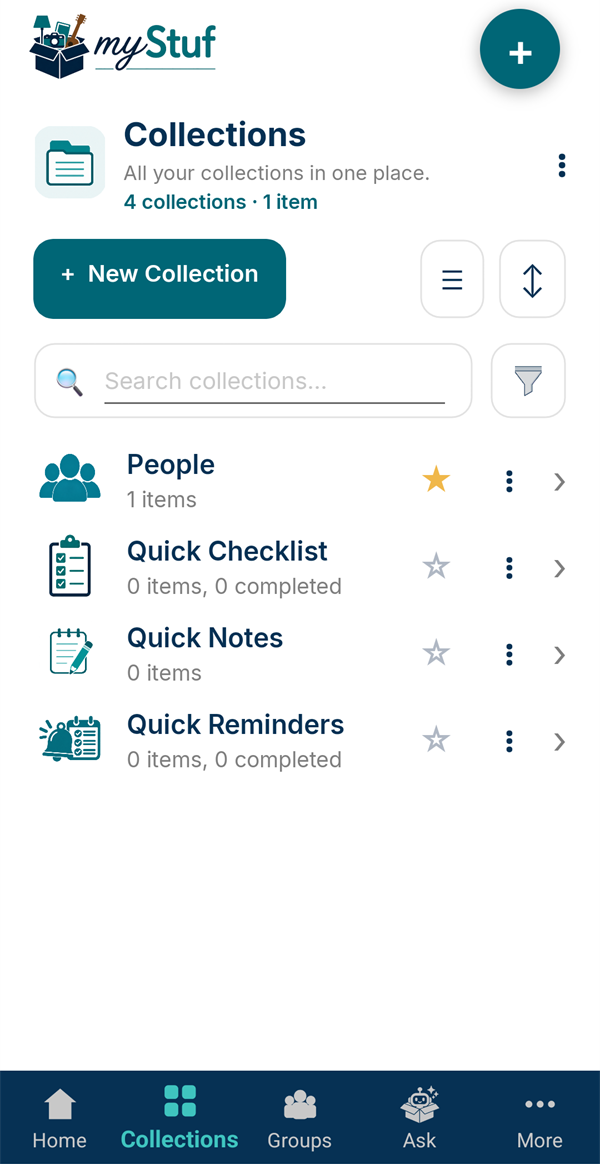
Tap Collections in the bar at the bottom. You'll see every collection you have. New accounts already have People and the three Quick collections.
Tap + New Collection.
-
Pick a collection type
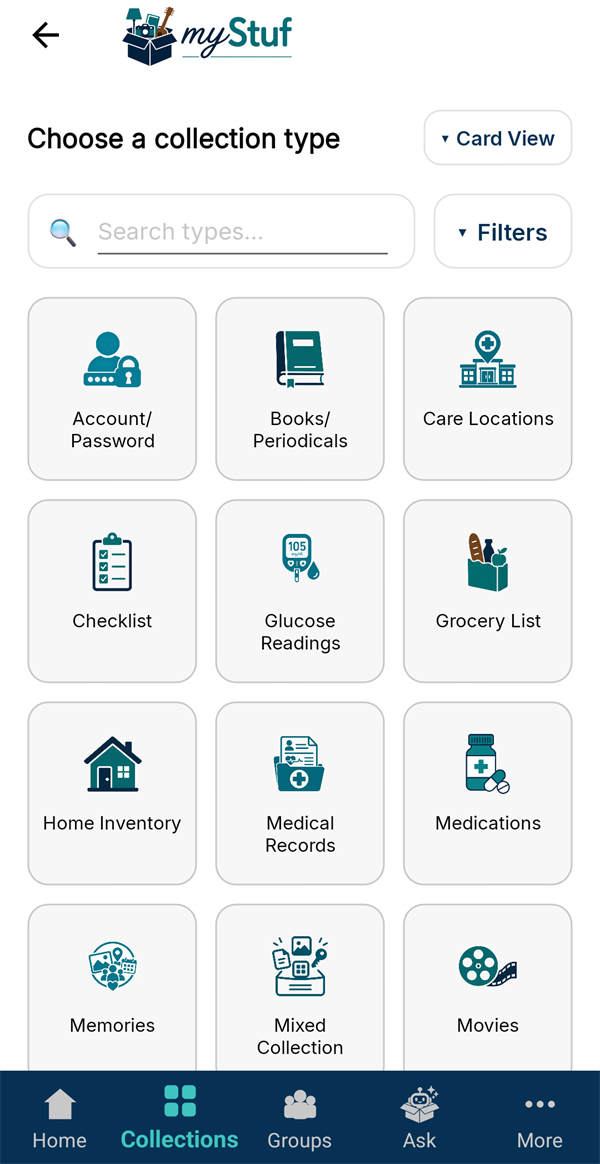
The type decides which fields each item gets. A book has an author and ISBN, a medication has a dose and refill date. Scroll the list, or type in Search types.
For this tutorial, tap Books/Periodicals.
Not sure which to pick? Mixed Collection takes a bit of everything.
-
Name it
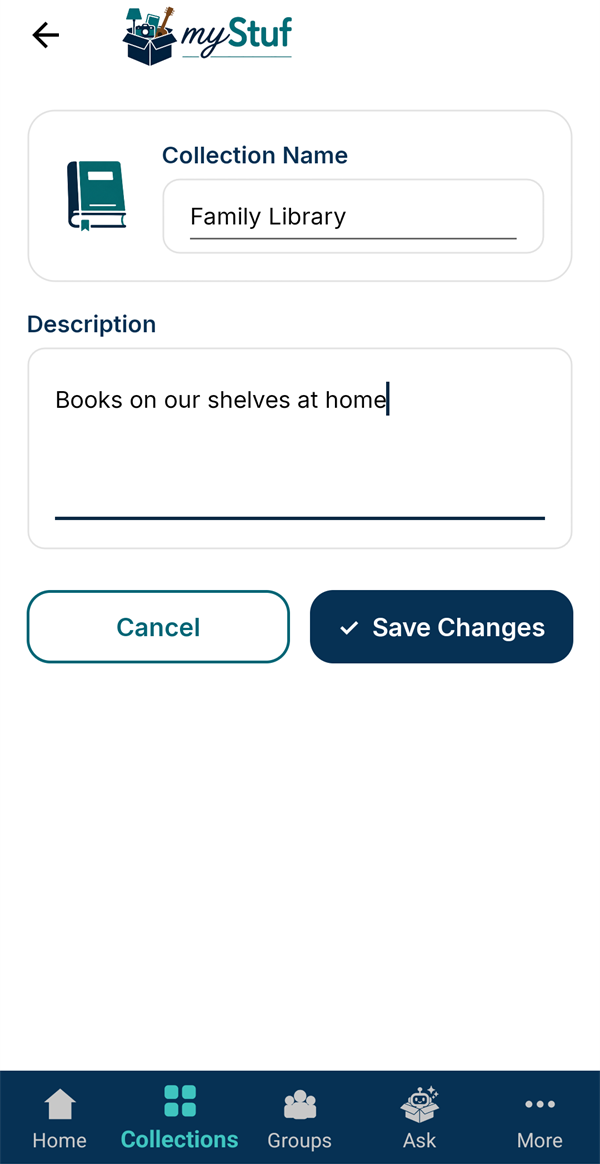
Give the collection a name, like Family Library, and an optional description. Then tap Save Changes.
You can have as many collections of the same type as you like, for example one per bookshelf or one per house.
-
Add your first item
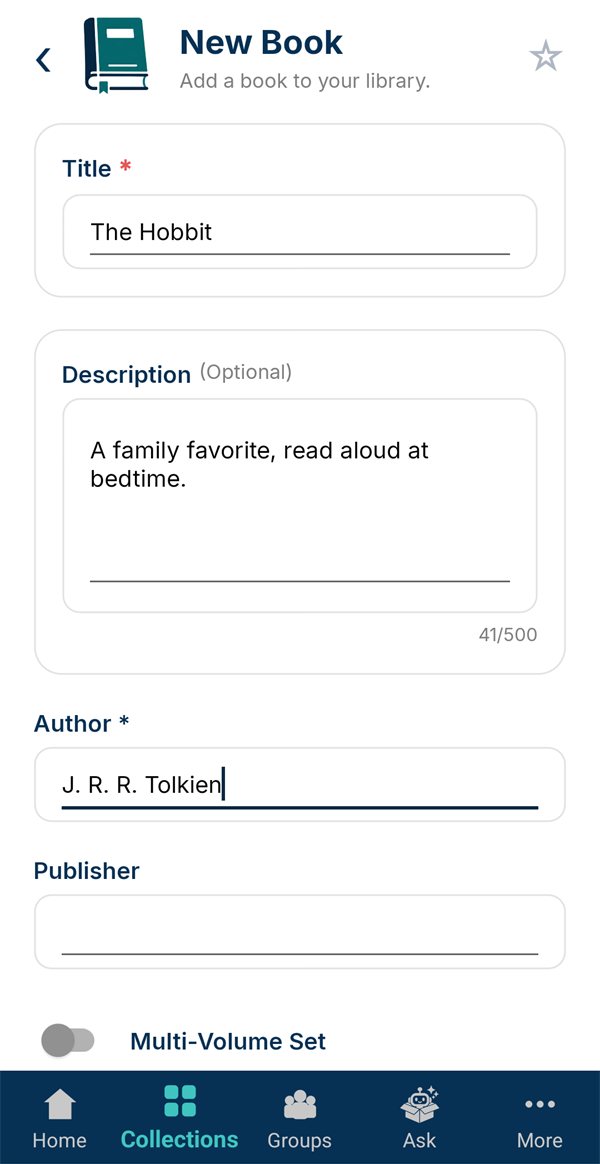
Your new collection opens empty. Tap + New Book; the button is named after the collection's type.
Fill in what you know. Only fields marked * are required, here the Title and Author. Everything else can wait.
-
Add a photo
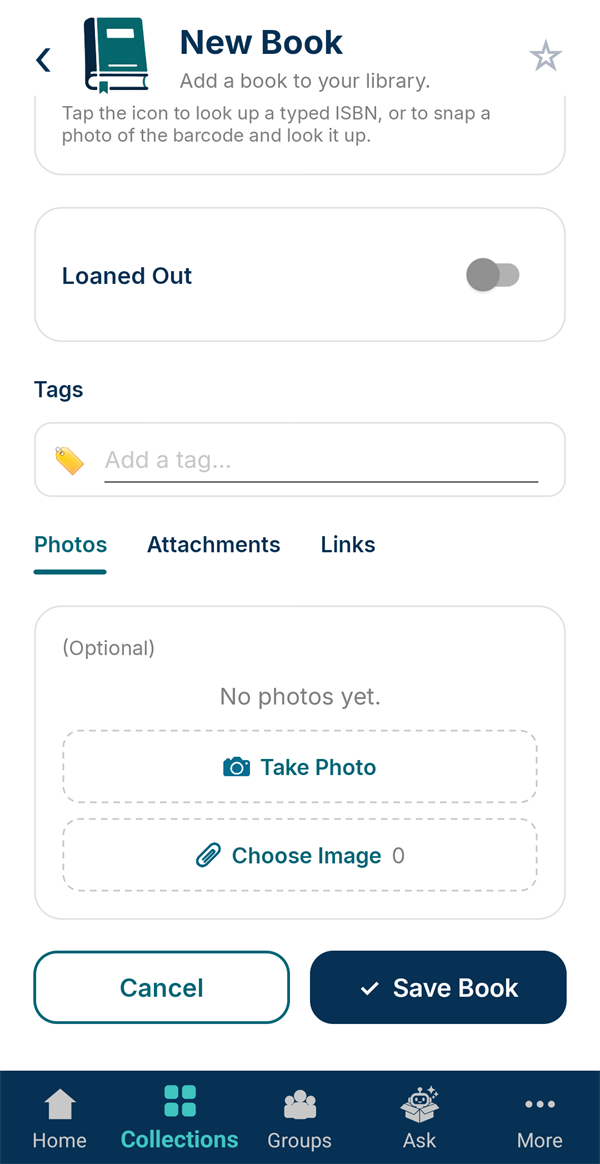
Scroll down to Photos. Tap Take Photo to use the camera, or Choose Image to pick one you already have. The first photo becomes the item's picture in lists.
Then tap Save Book.
Books can also fill themselves in: type or scan the ISBN barcode and tap the lookup icon.
-
Star it as a favorite
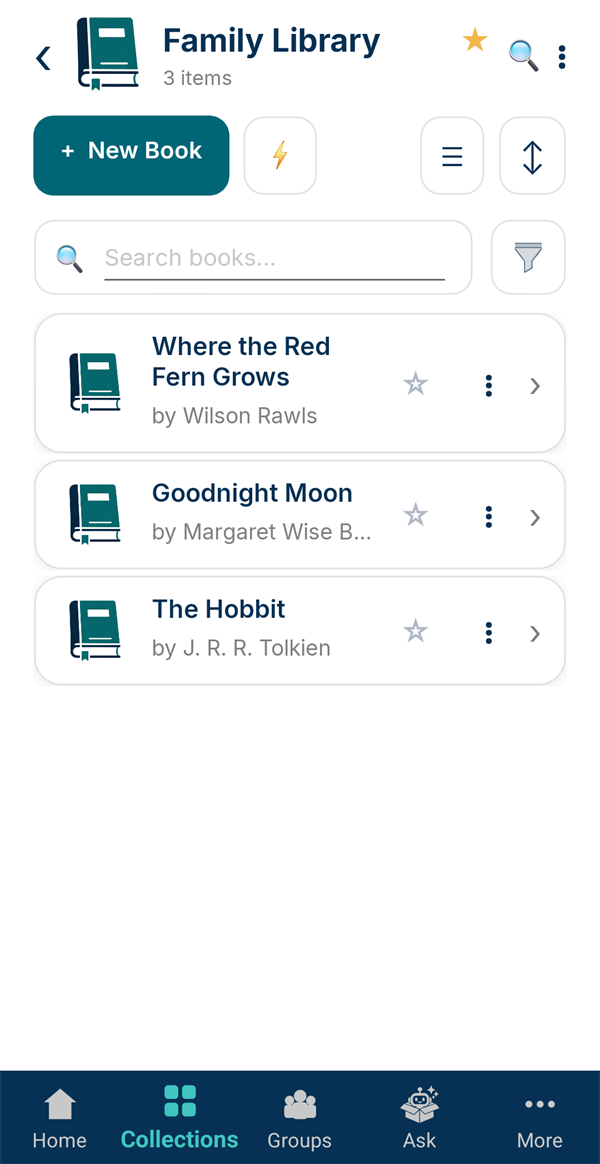
Add a few more items and your list fills up. Tap the ☆ at the top of the collection to make it a favorite. The star on each row does the same for a single item.
-
Find it on Home
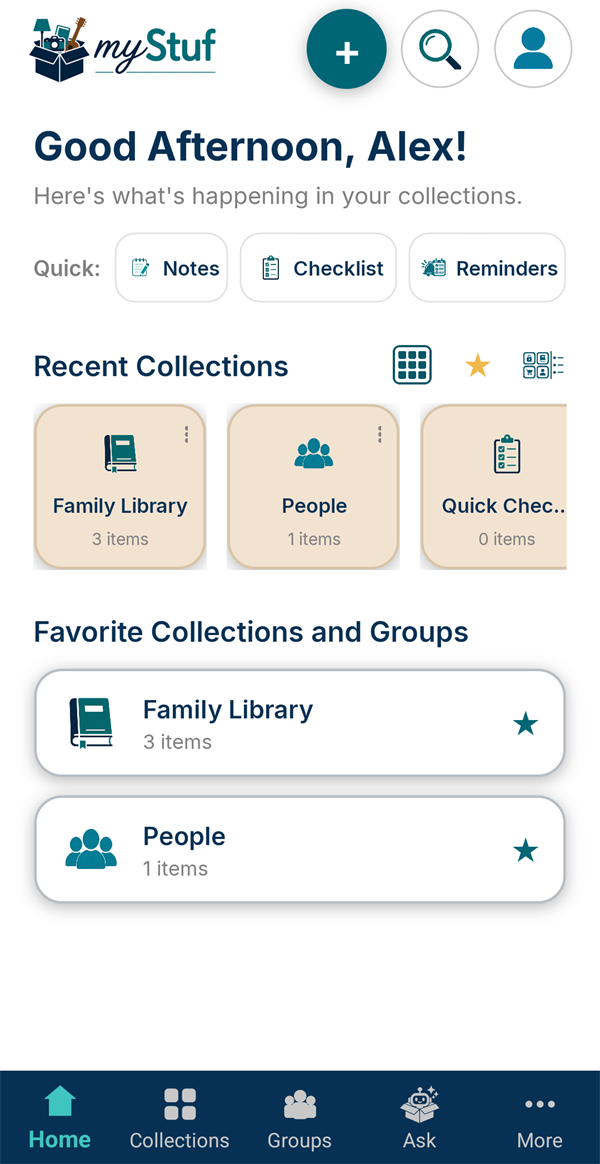
Tap Home. Starred collections are listed under Favorite Collections and Groups, and whatever you've opened lately is under Recent Collections, one tap away.
That's it. Every collection type works this way: create it, pick a type, add items.