
Budget
A Budget keeps track of the money coming in and going out, without turning it into a chore. Adding an expense takes a few seconds, every category can have a monthly plan, and the regular bills remind you before they're due. These screenshots are from the myStuf app with a made-up family's budget; myStuf Online at mystuf.app works the same way.
You'll need: myStuf (the app, or myStuf Online at mystuf.app). Budget is on every plan, and adding expenses is free.
-
Create a Budget
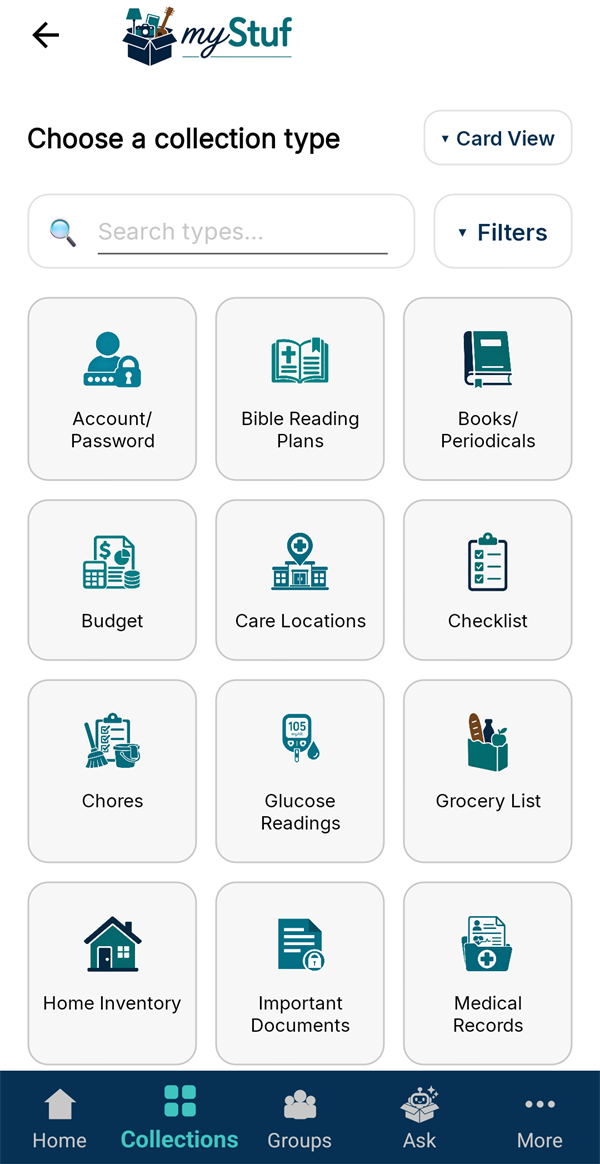
Add a collection and choose Budget. Give it a name, like "Rivera Family Budget".
On the first screen, tap Add the starter list. You get categories like Mortgage / Rent, Utilities (with Electric, Natural Gas, Water and Internet under it), Food, Eat Out and Gas, and places like Walmart, Amazon, Publix and Target. Rename, hide or delete anything that doesn't fit, or add your own.
-
Add an expense in seconds
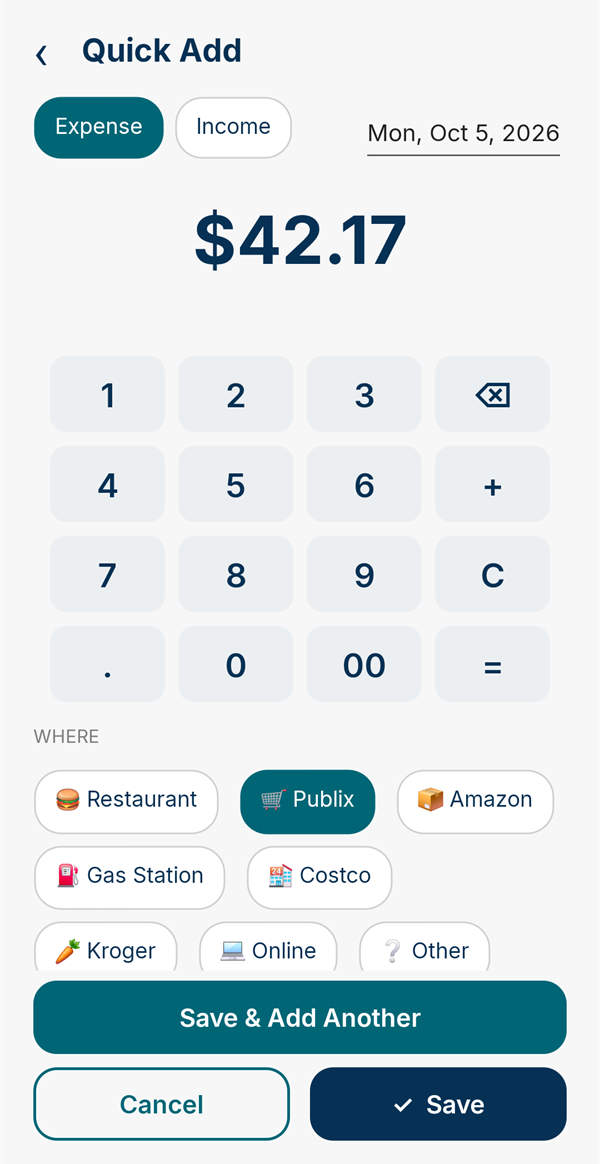
Tap the round +. Type the amount on the keypad, tap where you spent it, and tap Save. The date is today, and the category and how you paid fill themselves in from the last time you used that place.
Got a pile of receipts? Save & Add Another keeps the screen open. The keypad adds up for you too: type 12.50 + 8.99 for two items on one receipt. Switch to Income for a paycheck or anything else coming in.
-
See the month
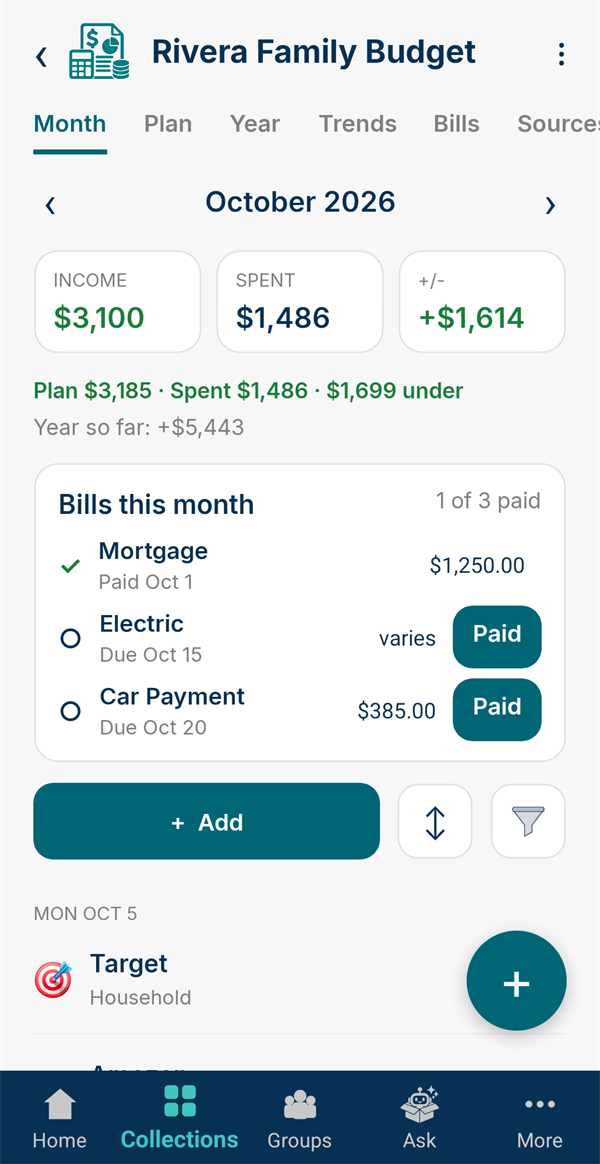
The Month tab shows what came in, what went out, and the +/- for the month, plus how you're doing against your plan and how the year is going so far. Use ‹ and › to move between months.
Below that are this month's bills and every entry, grouped by day. Use the sort and filter buttons to narrow it down by income or expense, category, place, how it was paid, who added it, or amount. Tap an entry to change, duplicate or delete it.
-
Plan the month
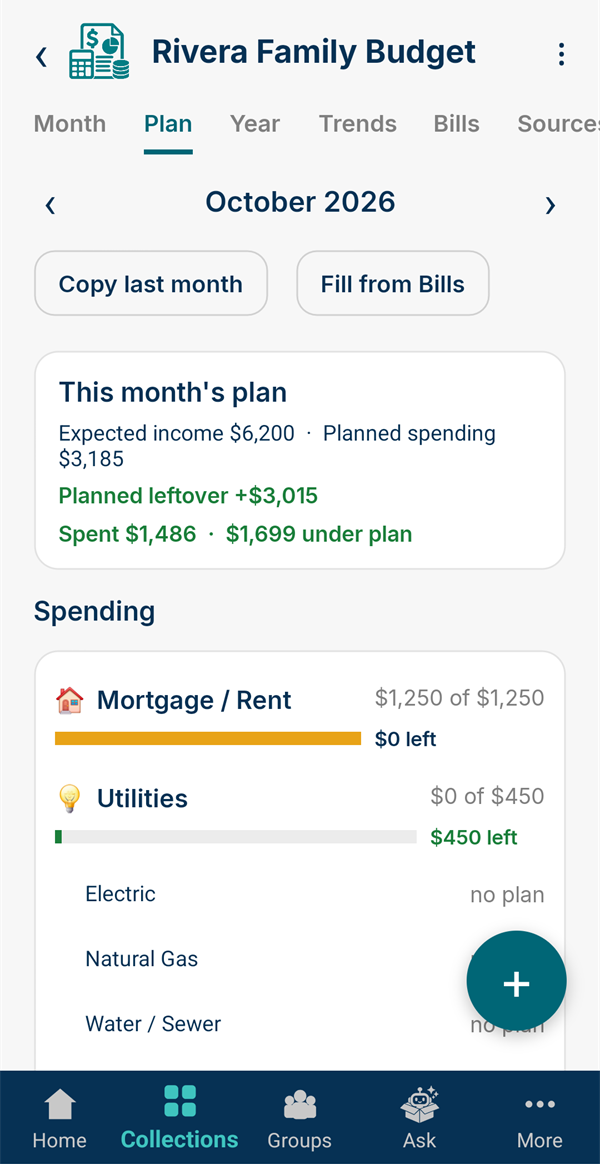
On the Plan tab, tap a category and enter how much you plan to spend, like Food 600 or Eat Out 150. Choose From this month on to keep it for every month after, or Just this month for a one-off, like gifts in December.
Each category shows what's spent, what's left and a bar that turns amber near the limit and red when you're over. Plan a category as a whole (Utilities 450), or plan its sub-categories and let them add up. Add your paychecks under Income to see your planned leftover.
-
Add your regular bills
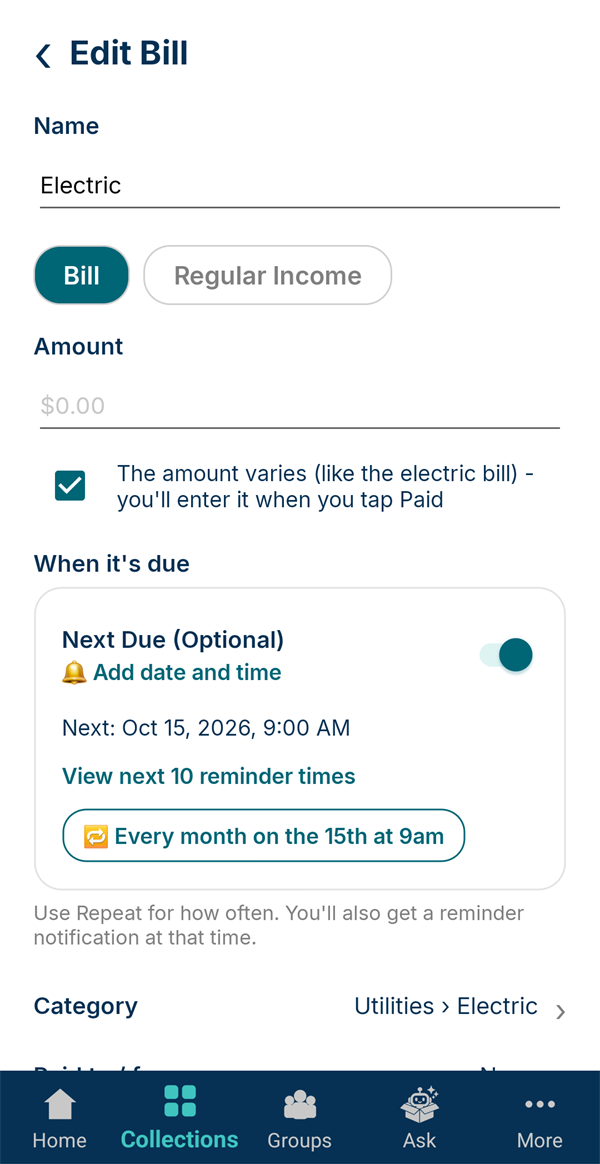
On the Bills tab, tap Add a Bill or Regular Income for the mortgage, car payment, insurance, utilities or a paycheck. Enter the amount (or tick The amount varies for something like the electric bill) and use Repeat for how often it's due.
Each bill also reminds you on its due date, so a payment doesn't slip by.
-
Tap Paid when it's paid
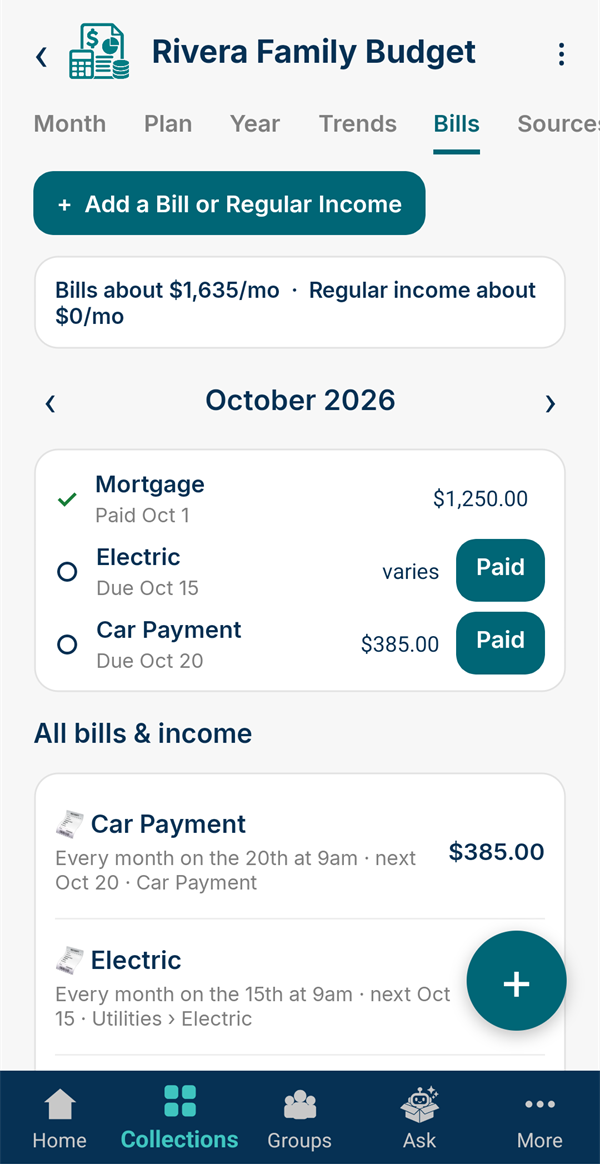
Each month the bills show as Due, Late or Paid. Nothing is ever entered on its own: when you pay one, tap Paid.
The entry opens already filled in with the category and how you pay it. Type the amount if it varies and save. Once a bill is marked paid, its reminder skips to the next due date.
-
Everything fills itself in
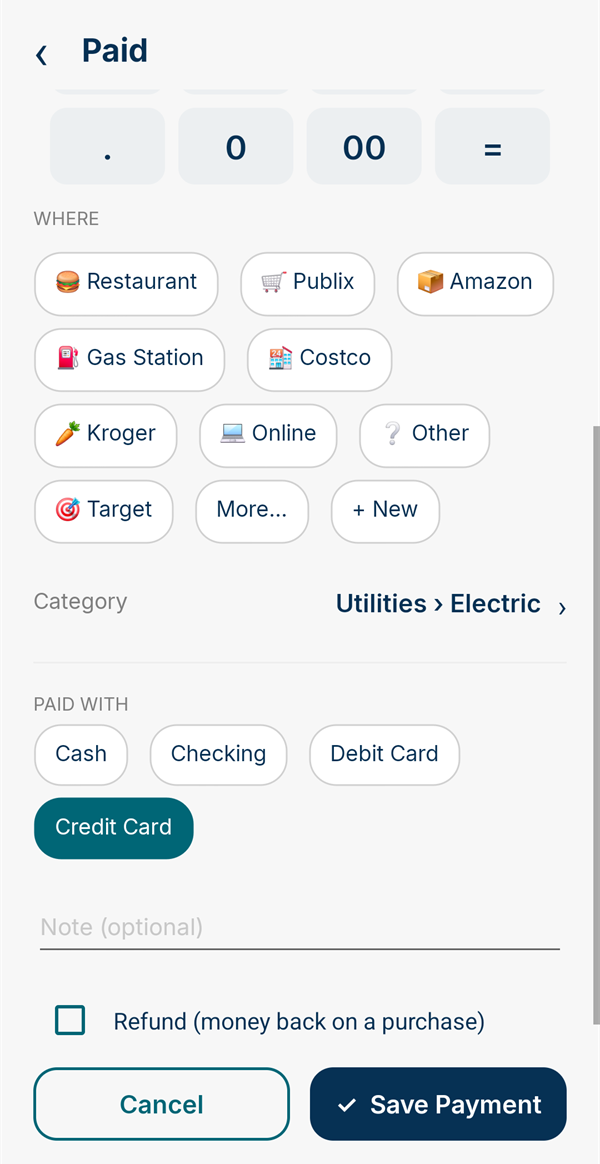
Paying a bill, or picking a place you've used before, fills in the category and how you paid. Change anything before saving, add a note, or tick Refund for money back on a purchase. A refund comes off that category's spending instead of counting as income.
-
The whole year
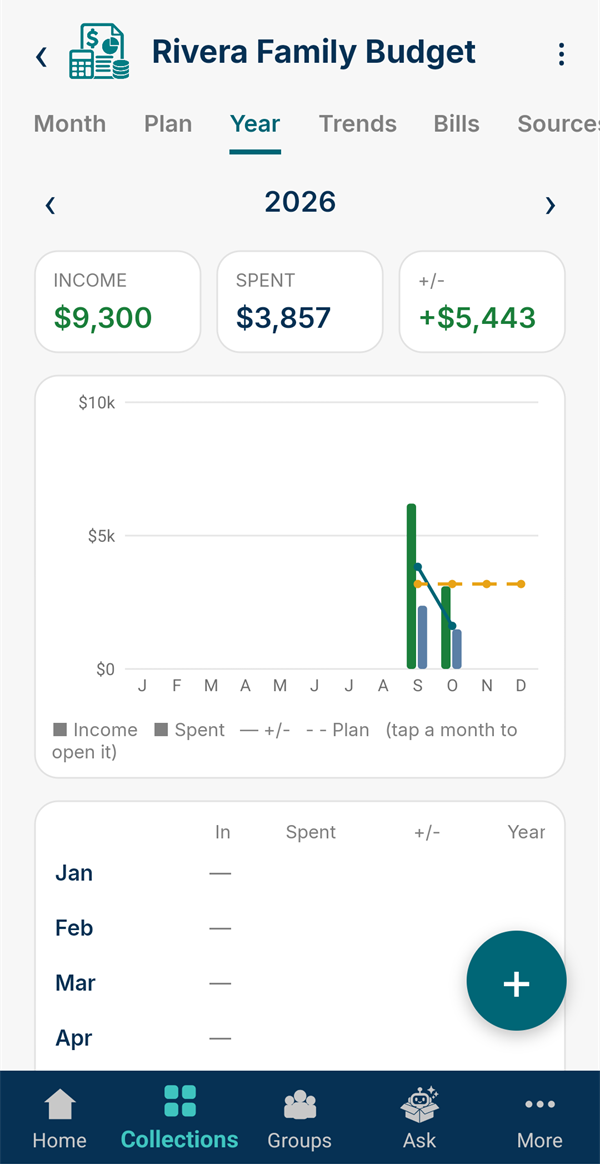
The Year tab puts every month side by side: income, spending, your plan, the month's +/- and the running total for the year. Tap a month in the chart to open it.
Further down, By category shows each category month by month, so you can see where the money goes over time.
-
Spot the trends
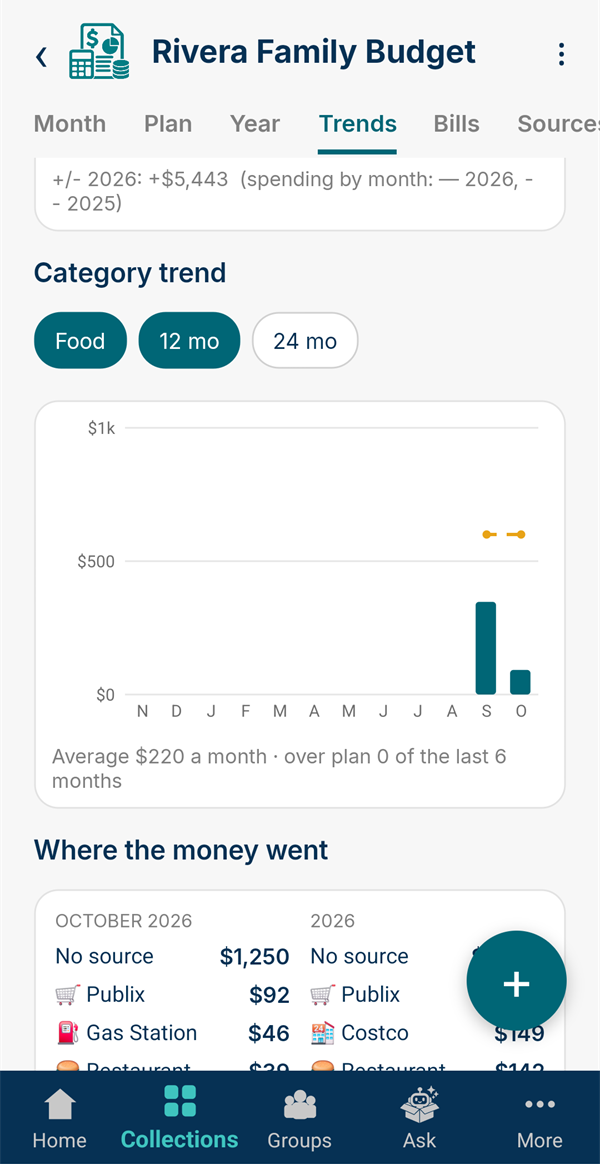
Trends compares this year with last year at the same point. It also follows one category over 12 or 24 months against its plan, and shows where the money went, this month and this year.
-
Right on the Home screen
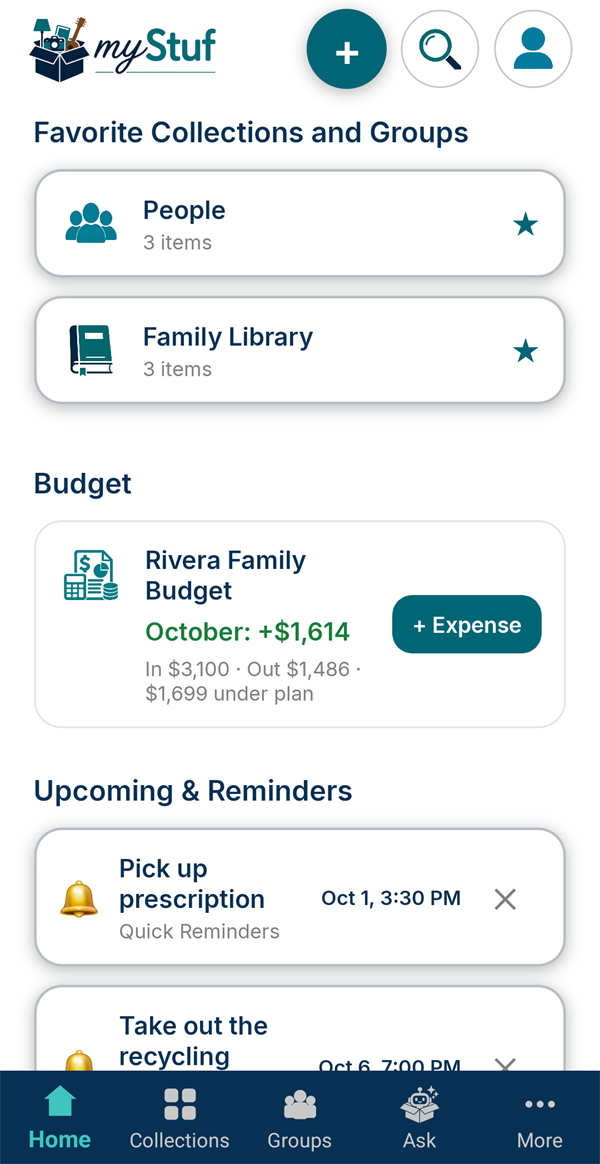
Home shows the month's +/-, how you're doing against your plan, and any bills due in the next week. Tap + Expense to add one without opening the budget.
Share the budget with your spouse so you can both add expenses. Each entry shows who added it, and the totals add up together. From the ⋮ menu you can print or save a month or year report, export the entries for a spreadsheet, or edit your Paid With labels in Settings.
That's it. Back to all tutorials, or keep the companies behind those bills in one place with Service providers.